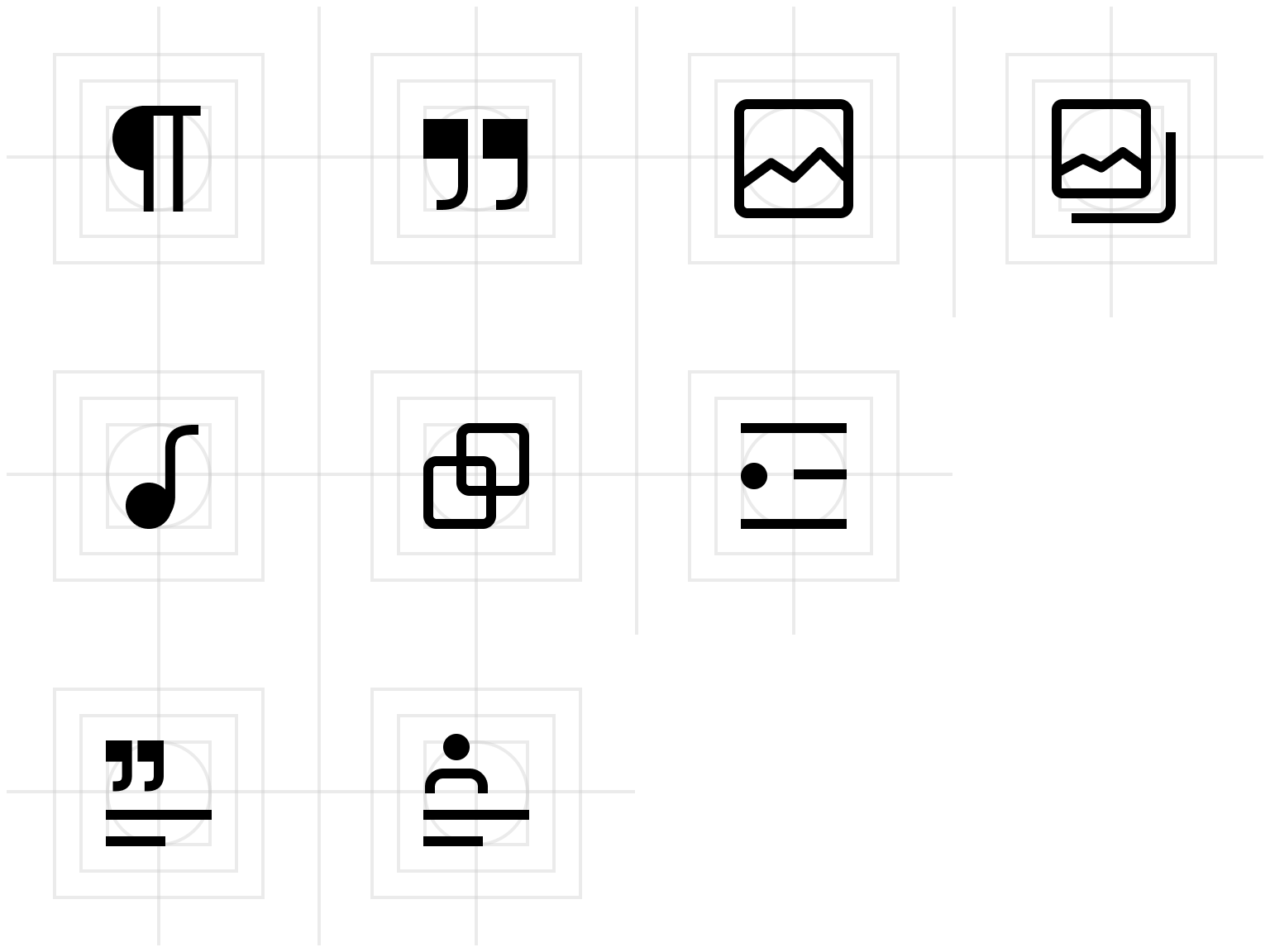
Over the years, WordPress projects have leveraged a variety of icon sets, including Dashicons (the previous official set, now deprecated). A new icon set has been created. Sometimes referred to as Gutenberg icons, they are also simply called WordPress Icons:
The Library & Figma
The new icon set ship with WordPress, they are published to NPM, you can see them in the Gutenberg Storybook, and they are being developed and also available in the WPDS Figma library:
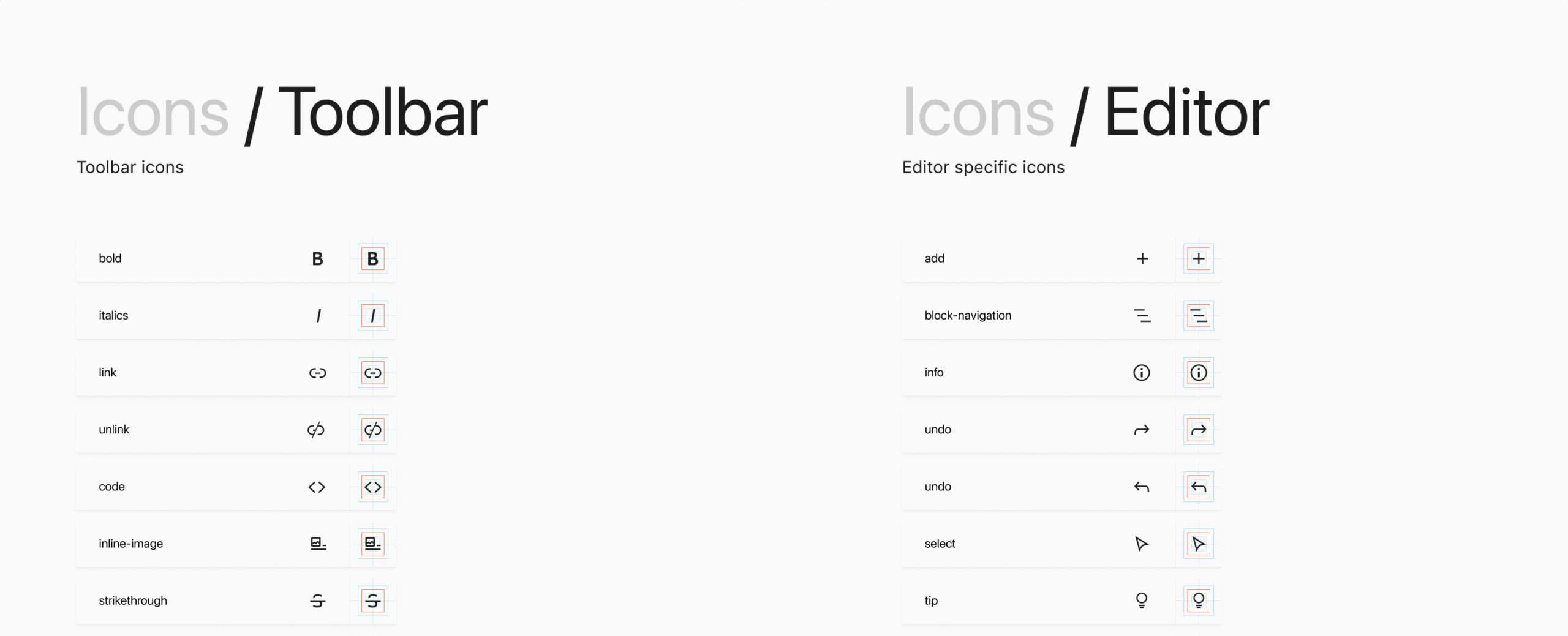
You should be able to reuse these icons in your designs while retaining the connection to the original library by following these steps:
- Open the WordPress Design Library Figma file.
- Copy/paste one icon into your working file.
- Duplicate the icon as needed, swapping out the instance using Figma’s dropdown selector or search functionality as highlighted below.
Design & Metrics

WordPress icons are 24x24px in their base size. They are primarily stroke-based in design:
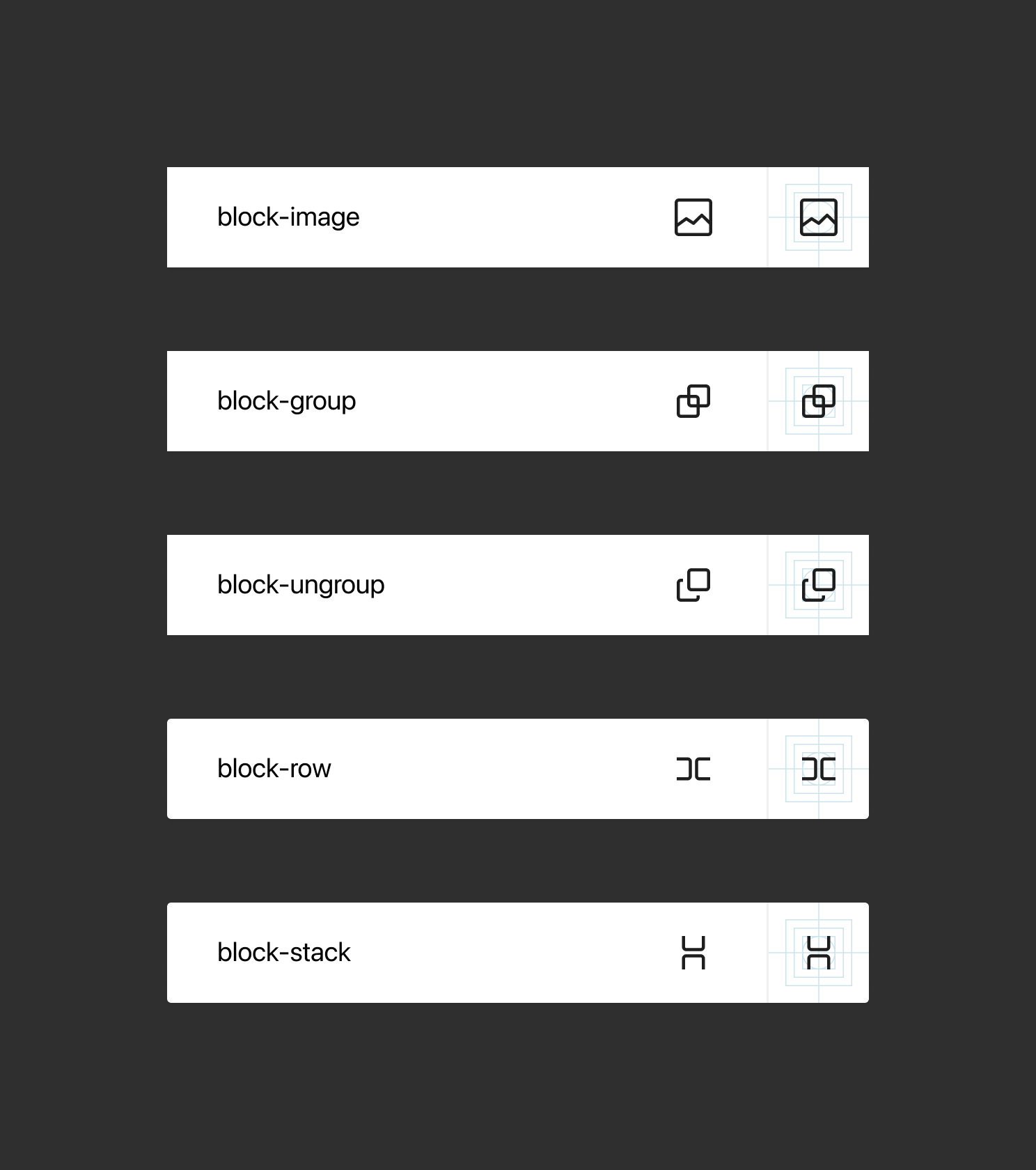
The stroke-width is 1.5px, hinted to the nearest outside pixel:

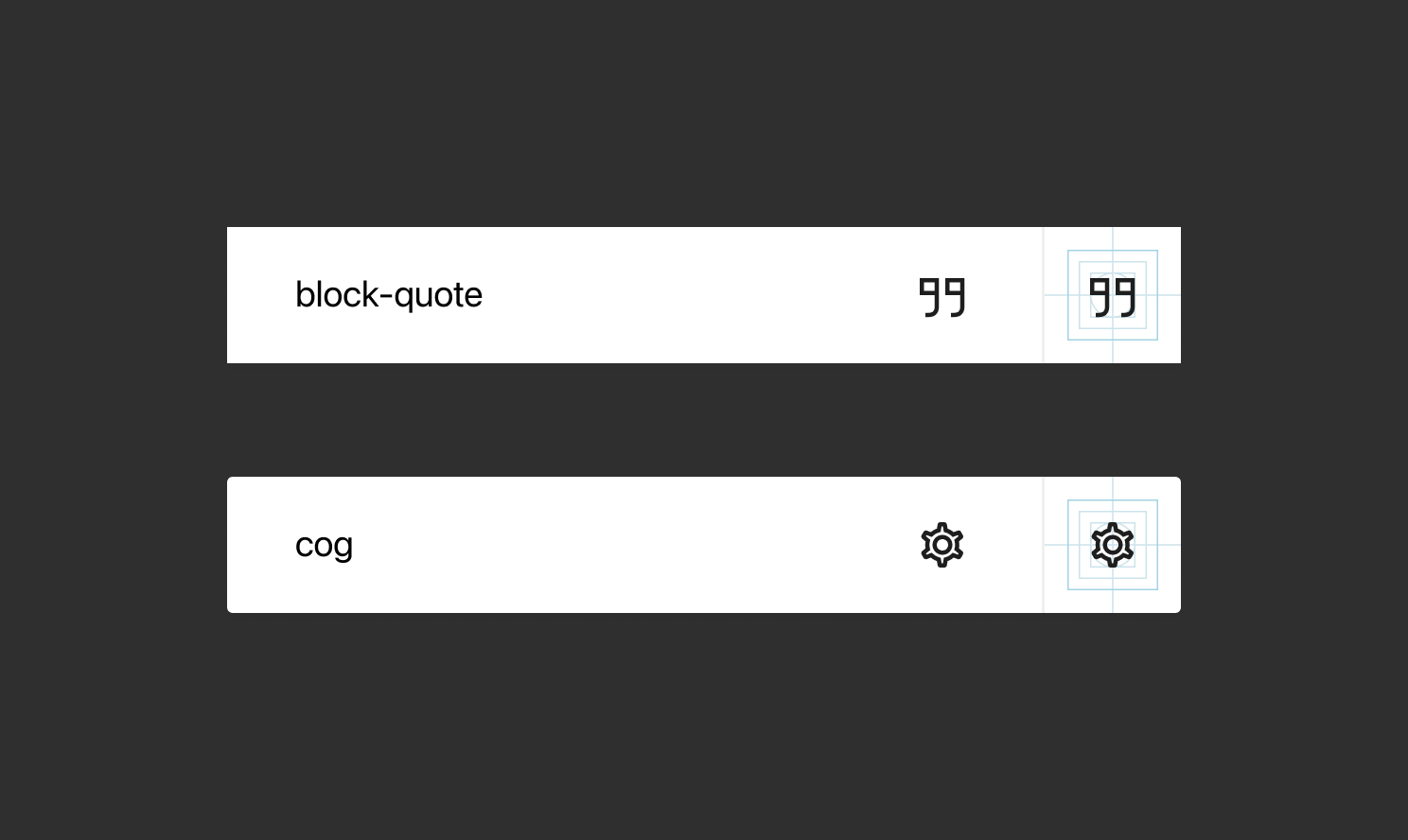
Outline icons are not a hard rule, and occasionally with icons that need emphasis or work better with solid areas, solids are used:
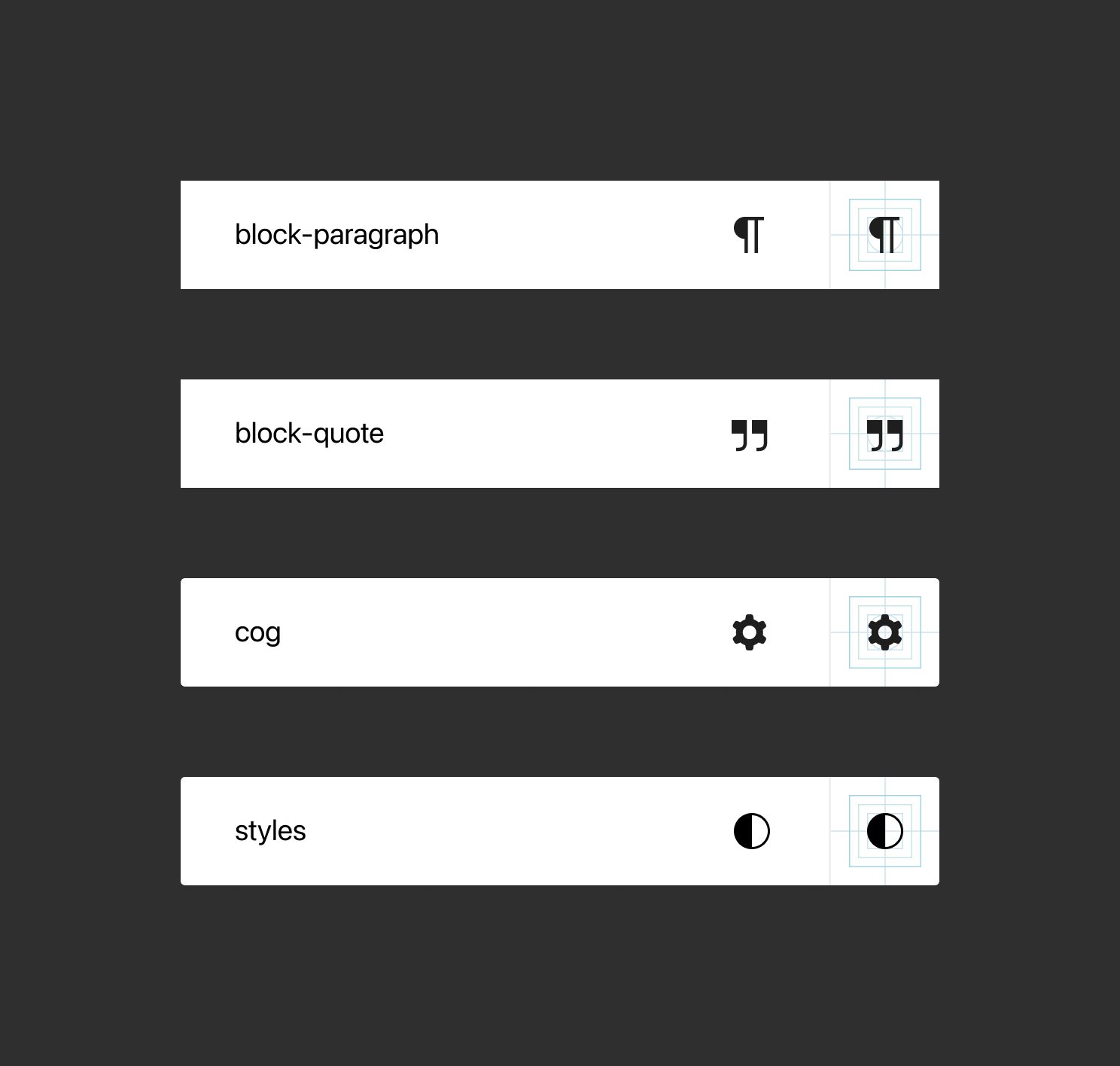
Don’t seek out outline variants at any cost. Don’t do this, for example:
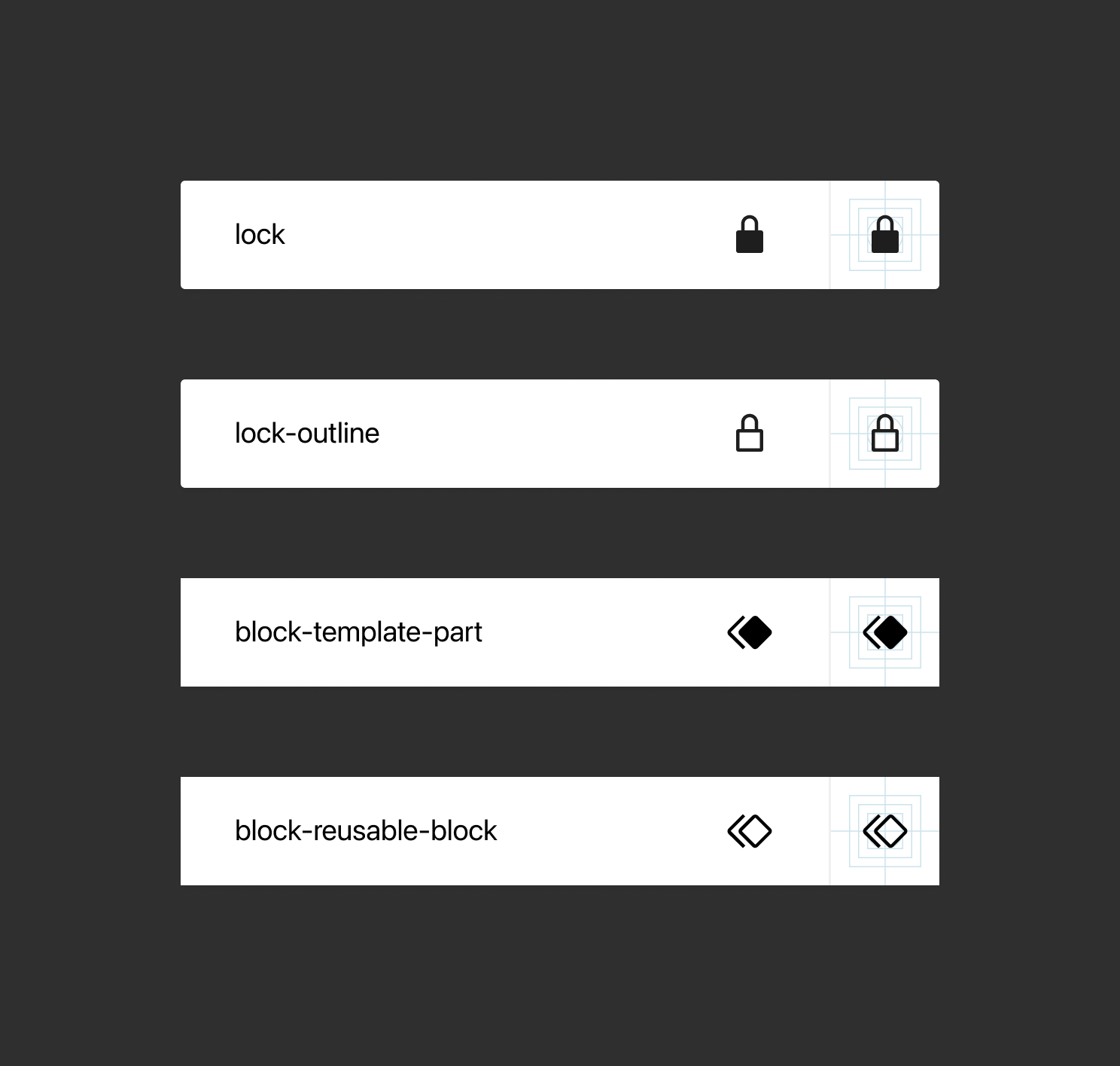
Occasionally an icon will come in both outline and solid styles, depending on the context or emphasis necessary:
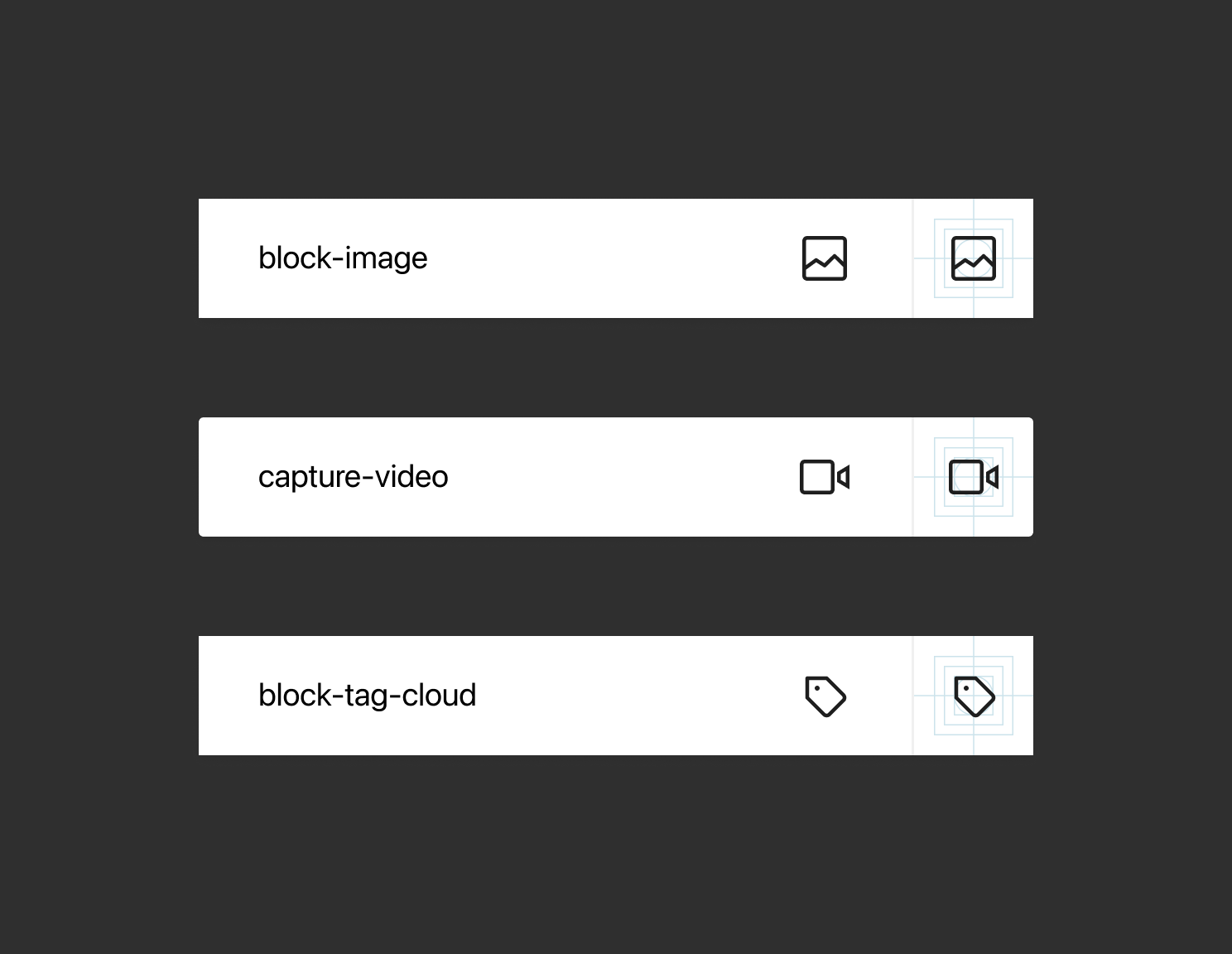
Most icons have a 1px rounded corner radius on an inset stroke:
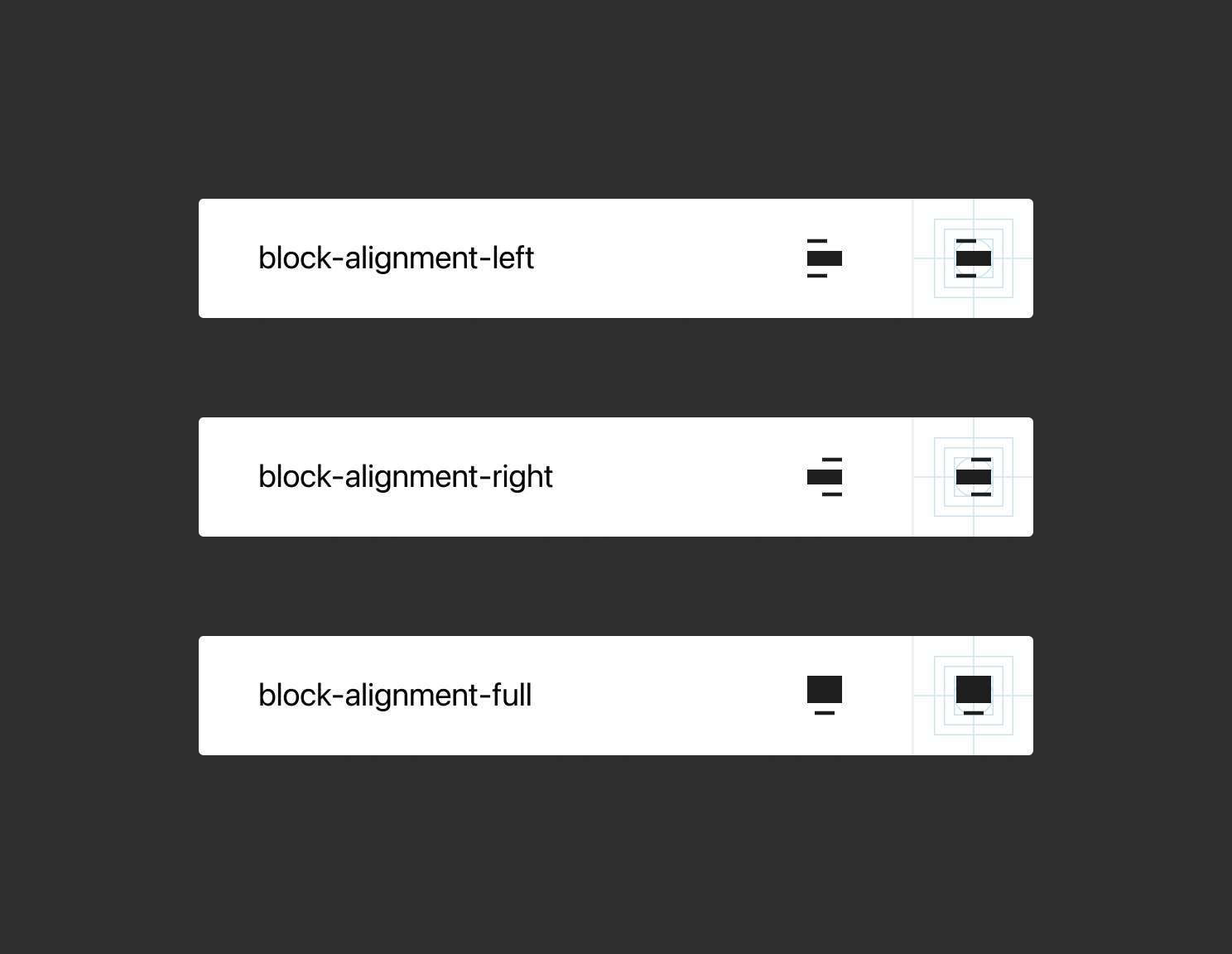
That is not a hard rule, though, and the radius is avoided in cases where the icon would otherwise feel “bubbly”:
Contributing
Icons are designed directly in Figma, and then added to the WordPress Design Library file on the Icons page. A number of contributors have edit access to the Figma file, so you can always ask for advice in the public #design slack. The idealized process for contributing an icon is to:
- Design the icon according to the above metrics. You can use the existing Figma file to copy/paste any templates you need.
- Suggest adding the new icon in the WordPress core slack, in #design. Here’s how to join the WordPress core slack.
- If it’s a well-designed and reusable icon, it will be added.
There are a few more technical steps on when/how the icon lands in the plugin and on NPM, we’ll get to that later.
Criteria for addition
The main criteria for whether an icon will be added boils down to: is it well designed? And can it/will it be used by more than just you?
Outside of that basic rule of thumb, a few specific criteria do exist:
- No logos, with the notable exception of the WordPress logo. It is legally shaky to add logos, given we can’t ensure the correct brand-guideline usage. We also don’t want to be arbiters of which logos get added, and which don’t.
- Strive to create generic icons that can be in the interest of 3rd parties to use.
In actual practice, the project is very accepting of new icons, and there’s rarely any objections.
Adding an icon to codebase
At the moment icons are added manually:
- Export a 24x24px SVG from Figma
- Convert strokes to fills and unify into a single compound shape, either before exporting, or after the fact in Illustrator
- Minify the SVG — SVGOMG is a useful tool to do that
- Ask a developer for help adding the SVG code to the library, or make a PR. Here’s an example.
At the moment, you can use SVG’s directly in the block editor project, they are converted to React based components on the fly.
Other important notes for the Figma library
For consumers of the WordPress design library, it’s important that the name of the page, and the frames icons are stored in, are kept, as they make up the structure of the icon replacement dialog.
There are a number of suggested but not yet implemented icon categories that will improve browsing icons further.
If you are a Figma contributor, remember to publish your icons.
- It can always be good to save a copy to version history before you update (⌥⌘S).
- You don’t have to publish all pending changes, you can use the checkboxes to choose just the icon addition you’ve made.
- Add a good description when you’re publishing, this will let consumers of the library know whether to update or not. If an older mockup looks good, perhaps there’s no reason to update to new changes.
- Feel free to leave Figma comments in the file, for any context or questions you might have. Note that they are public, just like the library itself.
If you see a breaking change having been published to the library, please do mention it in the core #design Slack channel as soon as you discover it, if you aren’t able to fix the issue directly.
Using WordPress Icons
In React based projects
You can use the NPM package from https://www.npmjs.com/package/@wordpress/icons.
Here’s a useful Storybook, and the README for the Icons library.
In other projects
At the moment, you can grab the SVGs directly from Storybook, or export them from the Figma library, but hopefully after we add a build step there will be more options here.
If you’d like to help create this build step, definitely chime in on the ticket.