Category: Forms

  • NumberControl

    NumberControl

    import { NumberControl } from '@wordpress/components';
    

    View on Storybook

    View in Figma

    View source on GitHub

    Examples

    Default

    const Default = ( {
    	onChange,
    	...props
    } ) => {
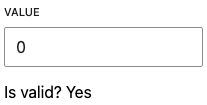
    	const [ value, setValue ] = useState< string | undefined >( '0' );
    	const [ isValidValue, setIsValidValue ] = useState( true );
    
    	return (
    		<>
    			<NumberControl
    				__next40pxDefaultSize
    				{ ...props }
    				value={ value }
    				onChange={ ( v, extra ) => {
    					setValue( v );
    					setIsValidValue(
    						( extra.event.target as HTMLInputElement ).validity
    							.valid
    					);
    					onChange?.( v, extra );
    				} }
    			/>
    			<p>Is valid? { isValidValue ? 'Yes' : 'No' }</p>
    		</>
    	);
    };
    
  • RadioControl

    RadioControl

    Render a user interface to select the user type using radio inputs.

    import { RadioControl } from '@wordpress/components';
    

    View on Storybook

    View in Figma

    View source on GitHub

    Examples

    Default

    const Default = () => {
        const [ value, setValue ] = useState( options?.[ 0 ]?.value );
    
        return (
            <RadioControl
                label="Post visibility"
                selected={ value }
                options={ options }
                onChange={ ( v ) => {
    				setValue( v );
    				onChange( v );
    			} } />
        );
    };
    

    With Option Descriptions

    const WithOptionDescriptions = () => {
        const [ value, setValue ] = useState( options?.[ 0 ]?.value );
    
        return (
            <RadioControl
                selected={ value }
                options={ options }
                onChange={ ( v ) => {
    				setValue( v );
    				onChange( v );
    			} } />
        );
    };
    
  • RangeControl

    RangeControl

    RangeControls are used to make selections from a range of incremental values.

    import { RangeControl } from '@wordpress/components';
    

    View on Storybook

    View in Figma

    View source on GitHub

    Examples

    Default

    const Default = () => {
        const [ value, setValue ] = useState< number >();
    
        return (
            <RangeControl
                __next40pxDefaultSize
                onBlur={fn()}
                onFocus={fn()}
                onMouseLeave={fn()}
                onMouseMove={fn()}
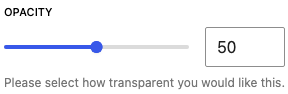
                help="Please select how transparent you would like this."
                initialPosition={50}
                label="Opacity"
                max={100}
                min={0}
                value={ value }
                onChange={ ( v ) => {
    				setValue( v );
    				onChange?.( v );
    			} } />
        );
    };
    

    With Any Step

    Setting the step prop to "any" will allow users to select non-integer values. This also overrides both withInputField and showTooltip props to false.

    const WithAnyStep = () => {
        const [ value, setValue ] = useState< number >();
    
        return (
            <>
                <RangeControl
                    __next40pxDefaultSize
                    onBlur={fn()}
                    onFocus={fn()}
                    onMouseLeave={fn()}
                    onMouseMove={fn()}
                    label="Brightness"
                    step="any"
                    value={ value }
                    onChange={ ( v ) => {
    					setValue( v );
    					onChange?.( v );
    				} } />
                <hr style={ { marginTop: '5em' } } />
                <p>Current value: { value }</p>
            </>
        );
    };
    

    With Integer Step And Marks

    Use marks to render a visual representation of step ticks. Marks may be automatically generated or custom mark indicators can be provided by an Array.

    const WithIntegerStepAndMarks = () => {
        const [ automaticValue, setAutomaticValue ] = useState< number >();
        const [ customValue, setCustomValue ] = useState< number >();
    
        return (
            <>
                <h2>{ label }</h2>
                <RangeControl
                    __next40pxDefaultSize
                    onBlur={fn()}
                    onFocus={fn()}
                    onMouseLeave={fn()}
                    onMouseMove={fn()}
                    max={10}
                    min={0}
                    step={1}
                    label="Automatic marks"
                    marks
                    onChange={ ( v ) => {
    					setAutomaticValue( v );
    					onChange?.( v );
    				} }
                    value={ automaticValue } />
                <RangeControl
                    __next40pxDefaultSize
                    onBlur={fn()}
                    onFocus={fn()}
                    onMouseLeave={fn()}
                    onMouseMove={fn()}
                    marks={marksBase}
                    max={10}
                    min={0}
                    step={1}
                    label="Custom marks"
                    onChange={ ( v ) => {
    					setCustomValue( v );
    					onChange?.( v );
    				} }
                    value={ customValue } />
            </>
        );
    };
    

    With Decimal Step And Marks

    Decimal values may be used for marks rendered as a visual representation of step ticks. Marks may be automatically generated or custom mark indicators can be provided by an Array.

    const WithDecimalStepAndMarks = () => {
        const [ automaticValue, setAutomaticValue ] = useState< number >();
        const [ customValue, setCustomValue ] = useState< number >();
    
        return (
            <>
                <h2>{ label }</h2>
                <RangeControl
                    __next40pxDefaultSize
                    onBlur={fn()}
                    onFocus={fn()}
                    onMouseLeave={fn()}
                    onMouseMove={fn()}
                    max={10}
                    min={0}
                    step={0.1}
                    label="Automatic marks"
                    marks
                    onChange={ ( v ) => {
    					setAutomaticValue( v );
    					onChange?.( v );
    				} }
                    value={ automaticValue } />
                <RangeControl
                    __next40pxDefaultSize
                    onBlur={fn()}
                    onFocus={fn()}
                    onMouseLeave={fn()}
                    onMouseMove={fn()}
                    marks={[
                        ...marksBase,
                        { value: 3.5, label: '3.5' },
                        { value: 5.8, label: '5.8' },
                    ]}
                    max={10}
                    min={0}
                    step={0.1}
                    label="Custom marks"
                    onChange={ ( v ) => {
    					setCustomValue( v );
    					onChange?.( v );
    				} }
                    value={ customValue } />
            </>
        );
    };

    

    With Negative Minimum And Marks

    A negative min value can be used to constrain RangeControl values. Mark indicators can represent negative values as well. Marks may be automatically generated or custom mark indicators can be provided by an Array.

    const WithNegativeMinimumAndMarks = () => {
        const [ automaticValue, setAutomaticValue ] = useState< number >();
        const [ customValue, setCustomValue ] = useState< number >();
    
        return (
            <>
                <h2>{ label }</h2>
                <RangeControl
                    __next40pxDefaultSize
                    onBlur={fn()}
                    onFocus={fn()}
                    onMouseLeave={fn()}
                    onMouseMove={fn()}
                    max={10}
                    min={-10}
                    step={1}
                    label="Automatic marks"
                    marks
                    onChange={ ( v ) => {
    					setAutomaticValue( v );
    					onChange?.( v );
    				} }
                    value={ automaticValue } />
                <RangeControl
                    __next40pxDefaultSize
                    onBlur={fn()}
                    onFocus={fn()}
                    onMouseLeave={fn()}
                    onMouseMove={fn()}
                    marks={marksWithNegatives}
                    max={10}
                    min={-10}
                    step={1}
                    label="Custom marks"
                    onChange={ ( v ) => {
    					setCustomValue( v );
    					onChange?.( v );
    				} }
                    value={ customValue } />
            </>
        );
    };
    

    With Negative Range And Marks

    The entire range of valid values for a RangeControl may be negative. Mark indicators can represent negative values as well. Marks may be automatically generated or custom mark indicators can be provided by an Array.

    const WithNegativeRangeAndMarks = () => {
        const [ automaticValue, setAutomaticValue ] = useState< number >();
        const [ customValue, setCustomValue ] = useState< number >();
    
        return (
            <>
                <h2>{ label }</h2>
                <RangeControl
                    __next40pxDefaultSize
                    onBlur={fn()}
                    onFocus={fn()}
                    onMouseLeave={fn()}
                    onMouseMove={fn()}
                    max={-1}
                    min={-10}
                    step={1}
                    label="Automatic marks"
                    marks
                    onChange={ ( v ) => {
    					setAutomaticValue( v );
    					onChange?.( v );
    				} }
                    value={ automaticValue } />
                <RangeControl
                    __next40pxDefaultSize
                    onBlur={fn()}
                    onFocus={fn()}
                    onMouseLeave={fn()}
                    onMouseMove={fn()}
                    marks={marksWithNegatives}
                    max={-1}
                    min={-10}
                    step={1}
                    label="Custom marks"
                    onChange={ ( v ) => {
    					setCustomValue( v );
    					onChange?.( v );
    				} }
                    value={ customValue } />
            </>
        );
    };
    

    With Any Step And Marks

    When a RangeControl has a step value of any a user may select non-integer values. This may still be used in conjunction with marks rendering a visual representation of step ticks.

    const WithAnyStepAndMarks = () => {
        const [ automaticValue, setAutomaticValue ] = useState< number >();
        const [ customValue, setCustomValue ] = useState< number >();
    
        return (
            <>
                <h2>{ label }</h2>
                <RangeControl
                    __next40pxDefaultSize
                    onBlur={fn()}
                    onFocus={fn()}
                    onMouseLeave={fn()}
                    onMouseMove={fn()}
                    max={10}
                    min={0}
                    step="any"
                    label="Automatic marks"
                    marks
                    onChange={ ( v ) => {
    					setAutomaticValue( v );
    					onChange?.( v );
    				} }
                    value={ automaticValue } />
                <RangeControl
                    __next40pxDefaultSize
                    onBlur={fn()}
                    onFocus={fn()}
                    onMouseLeave={fn()}
                    onMouseMove={fn()}
                    marks={marksBase}
                    max={10}
                    min={0}
                    step="any"
                    label="Custom marks"
                    onChange={ ( v ) => {
    					setCustomValue( v );
    					onChange?.( v );
    				} }
                    value={ customValue } />
            </>
        );
    };
    
  • SearchControl

    SearchControl

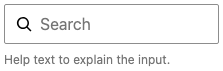
    SearchControl components let users display a search control.

    import { SearchControl } from '@wordpress/components';
    

    View on Storybook

    View in Figma

    View source on GitHub

    Props

    NameDefaultDescription
    label__( 'Search' )

    unknown

    placeholder__( 'Search' )

    unknown

    hideLabelFromVisiontrue

    unknown

    size'default'

    unknown

    Examples

    Default

    const Default = ( {
    	onChange,
    	...props
    } ) => {
    	const [ value, setValue ] = useState< string >();
    
    	return (
    		<SearchControl
    			{ ...props }
    			value={ value }
    			onChange={ ( ...changeArgs ) => {
    				setValue( ...changeArgs );
    				onChange( ...changeArgs );
    			} }
    		/>
    	);
    };
    
  • SelectControl

    SelectControl

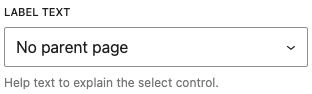
    SelectControl allows users to select from a single or multiple option menu. It functions as a wrapper around the browser’s native <select> element.

    import { SelectControl } from '@wordpress/components';
    

    View on Storybook

    View in Figma

    View source on GitHub

    Examples

    Default

    const Default = ( props ) => {
    	const [ selection, setSelection ] = useState< string[] >();
    
    	if ( props.multiple ) {
    		return (
    			<SelectControl
    				__next40pxDefaultSize
    				{ ...props }
    				multiple
    				value={ selection }
    				onChange={ ( value ) => {
    					setSelection( value );
    					props.onChange?.( value );
    				} }
    			/>
    		);
    	}
    
    	return (
    		<SelectControl
    			__next40pxDefaultSize
    			{ ...props }
    			multiple={ false }
    			value={ selection?.[ 0 ] }
    			onChange={ ( value ) => {
    				setSelection( [ value ] );
    				props.onChange?.( value );
    			} }
    		/>
    	);
    };
    

    With Label And Help Text

    const WithLabelAndHelpText = ( props ) => {
    	const [ selection, setSelection ] = useState< string[] >();
    
    	if ( props.multiple ) {
    		return (
    			<SelectControl
    				__next40pxDefaultSize
    				{ ...props }
    				multiple
    				value={ selection }
    				onChange={ ( value ) => {
    					setSelection( value );
    					props.onChange?.( value );
    				} }
    			/>
    		);
    	}
    
    	return (
    		<SelectControl
    			__next40pxDefaultSize
    			{ ...props }
    			multiple={ false }
    			value={ selection?.[ 0 ] }
    			onChange={ ( value ) => {
    				setSelection( [ value ] );
    				props.onChange?.( value );
    			} }
    		/>
    	);
    };
    

    With Custom Children

    As an alternative to the options prop, optgroups and options can be passed in as children for more customizeability.

    const WithCustomChildren = ( props ) => {
    	const [ selection, setSelection ] = useState< string[] >();
    
    	if ( props.multiple ) {
    		return (
    			<SelectControl
    				__next40pxDefaultSize
    				{ ...props }
    				multiple
    				value={ selection }
    				onChange={ ( value ) => {
    					setSelection( value );
    					props.onChange?.( value );
    				} }
    			/>
    		);
    	}
    
    	return (
    		<SelectControl
    			__next40pxDefaultSize
    			{ ...props }
    			multiple={ false }
    			value={ selection?.[ 0 ] }
    			onChange={ ( value ) => {
    				setSelection( [ value ] );
    				props.onChange?.( value );
    			} }
    		/>
    	);
    };
    

    With Prefix

    By default, the prefix is aligned with the edge of the input border, with no padding. If you want to apply standard padding in accordance with the size variant, wrap the element in the <InputControlPrefixWrapper> component.

    const WithPrefix = ( props ) => {
    	const [ selection, setSelection ] = useState< string[] >();
    
    	if ( props.multiple ) {
    		return (
    			<SelectControl
    				__next40pxDefaultSize
    				{ ...props }
    				multiple
    				value={ selection }
    				onChange={ ( value ) => {
    					setSelection( value );
    					props.onChange?.( value );
    				} }
    			/>
    		);
    	}
    
    	return (
    		<SelectControl
    			__next40pxDefaultSize
    			{ ...props }
    			multiple={ false }
    			value={ selection?.[ 0 ] }
    			onChange={ ( value ) => {
    				setSelection( [ value ] );
    				props.onChange?.( value );
    			} }
    		/>
    	);
    };
    

    Minimal

    const Minimal = ( props ) => {
    	const [ selection, setSelection ] = useState< string[] >();
    
    	if ( props.multiple ) {
    		return (
    			<SelectControl
    				__next40pxDefaultSize
    				{ ...props }
    				multiple
    				value={ selection }
    				onChange={ ( value ) => {
    					setSelection( value );
    					props.onChange?.( value );
    				} }
    			/>
    		);
    	}
    
    	return (
    		<SelectControl
    			__next40pxDefaultSize
    			{ ...props }
    			multiple={ false }
    			value={ selection?.[ 0 ] }
    			onChange={ ( value ) => {
    				setSelection( [ value ] );
    				props.onChange?.( value );
    			} }
    		/>
    	);
    };
    
  • TextareaControl

    TextareaControl

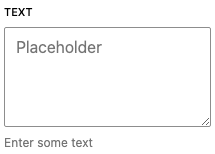
    TextareaControls are TextControls that allow for multiple lines of text, and wrap overflow text onto a new line. They are a fixed height and scroll vertically when the cursor reaches the bottom of the field.

    import { TextareaControl } from '@wordpress/components';
    

    View on Storybook

    View in Figma

    View source on GitHub

    Examples

    Default

    const Default = () => {
        const [ value, setValue ] = useState( '' );
    
        return (
            <TextareaControl
                label="Text"
                help="Enter some text"
                placeholder="Placeholder"
                value={ value }
                onChange={ ( v ) => {
    				setValue( v );
    				onChange( v );
    			} } />
        );
    };
    
  • TextControl

    TextControl

    TextControl components let users enter and edit text.

    import { TextControl } from '@wordpress/components';
    

    View on Storybook

    View source on GitHub

    Examples

    Default

    const Default = () => {
        const [ value, setValue ] = useState( '' );
    
        return (
            <TextControl
                __next40pxDefaultSize
                placeholder="Placeholder"
                value={ value }
                onChange={ ( v ) => {
    				setValue( v );
    				onChange( v );
    			} } />
        );
    };
    

    With Label And Help Text

    const WithLabelAndHelpText = () => {
        const [ value, setValue ] = useState( '' );
    
        return (
            <TextControl
                __next40pxDefaultSize
                label="Label Text"
                help="Help text to explain the input."
                value={ value }
                onChange={ ( v ) => {
    				setValue( v );
    				onChange( v );
    			} } />
        );
    };
    
  • ToggleControl

    ToggleControl

    ToggleControl is used to generate a toggle user interface.

    import { ToggleControl } from '@wordpress/components';
    

    View on Storybook

    View in Figma

    View source on GitHub

    Examples

    Default

    const Default = ( {
    	onChange,
    	...props
    } ) => {
    	const [ checked, setChecked ] = useState( true );
    	return (
    		<ToggleControl
    			{ ...props }
    			checked={ checked }
    			onChange={ ( ...changeArgs ) => {
    				setChecked( ...changeArgs );
    				onChange( ...changeArgs );
    			} }
    		/>
    	);
    };
    

    With Help Text

    const WithHelpText = ( {
    	onChange,
    	...props
    } ) => {
    	const [ checked, setChecked ] = useState( true );
    	return (
    		<ToggleControl
    			{ ...props }
    			checked={ checked }
    			onChange={ ( ...changeArgs ) => {
    				setChecked( ...changeArgs );
    				onChange( ...changeArgs );
    			} }
    		/>
    	);
    };
    
  • ToggleGroupControl

    ToggleGroupControl

    import { __experimentalToggleGroupControl as ToggleGroupControl } from '@wordpress/components';
    

    View on Storybook

    View in Figma

    View source on GitHub

    Examples

    Default

    const Default = ( {
    	onChange,
    	...props
    } ) => {
    	const [ value, setValue ] =
    		useState< ToggleGroupControlProps[ 'value' ] >();
    
    	return (
    		<ToggleGroupControl
    			__next40pxDefaultSize
    			{ ...props }
    			onChange={ ( ...changeArgs ) => {
    				setValue( ...changeArgs );
    				onChange?.( ...changeArgs );
    			} }
    			value={ value }
    		/>
    	);
    };
    

    With Tooltip

    A tooltip can be shown for each option by enabling the showTooltip prop. The aria-label will be used in the tooltip if provided. Otherwise, the label will be used.

    const WithTooltip = ( {
    	onChange,
    	...props
    } ) => {
    	const [ value, setValue ] =
    		useState< ToggleGroupControlProps[ 'value' ] >();
    
    	return (
    		<ToggleGroupControl
    			__next40pxDefaultSize
    			{ ...props }
    			onChange={ ( ...changeArgs ) => {
    				setValue( ...changeArgs );
    				onChange?.( ...changeArgs );
    			} }
    			value={ value }
    		/>
    	);
    };
    

    With Icons

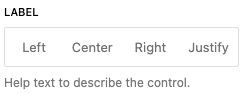
    The ToggleGroupControlOptionIcon component can be used for icon options. A label is required on each option for accessibility, which will be shown in a tooltip.

    const WithIcons = ( {
    	onChange,
    	...props
    } ) => {
    	const [ value, setValue ] =
    		useState< ToggleGroupControlProps[ 'value' ] >();
    
    	return (
    		<ToggleGroupControl
    			__next40pxDefaultSize
    			{ ...props }
    			onChange={ ( ...changeArgs ) => {
    				setValue( ...changeArgs );
    				onChange?.( ...changeArgs );
    			} }
    			value={ value }
    		/>
    	);
    };
    

    Deselectable

    When the isDeselectable prop is true, the option can be deselected by clicking on it again.

    const Deselectable = ( {
    	onChange,
    	...props
    } ) => {
    	const [ value, setValue ] =
    		useState< ToggleGroupControlProps[ 'value' ] >();
    
    	return (
    		<ToggleGroupControl
    			__next40pxDefaultSize
    			{ ...props }
    			onChange={ ( ...changeArgs ) => {
    				setValue( ...changeArgs );
    				onChange?.( ...changeArgs );
    			} }
    			value={ value }
    		/>
    	);
    };
    
  • TreeSelect

    TreeSelect

    Generates a hierarchical select input.

    import { TreeSelect } from '@wordpress/components';
    

    View on Storybook

    View source on GitHub

    Props

    NameDefaultDescription
    noOptionLabel

    string

    If this property is added, an option will be added with this label to represent empty selection.

    onChange

    SelectControlSingleSelectionProps[ 'onChange' ]

    A function that receives the value of the new option that is being selected as input.

    tree

    Tree[]

    An array containing the tree objects with the possible nodes the user can select.

    selectedId

    SelectControlSingleSelectionProps[ 'value' ]

    The id of the currently selected node.

    Examples

    Default

    const Default = ( props ) => {
    	const [ selection, setSelection ] =
    		useState< ComponentProps< typeof TreeSelect >[ 'selectedId' ] >();
    
    	return (
    		<TreeSelect
    			__next40pxDefaultSize
    			{ ...props }
    			onChange={ setSelection }
    			selectedId={ selection }
    		/>
    	);
    };