Category: Actions

  • MenuItemsChoice

    MenuItemsChoice

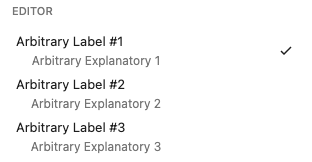
    MenuItemsChoice functions similarly to a set of MenuItems, but allows the user to select one option from a set of multiple choices.

    import { MenuItemsChoice } from '@wordpress/components';
    

    View on Storybook

    View source on GitHub

    Props

    NameDefaultDescription
    choices[]

    unknown

    Array of choices.

    value Required

    string

    Value of currently selected choice (should match a value property from a choice in choices).

    onSelect Required

    ( value: string ) => void

    Callback function to be called with the selected choice when user selects a new choice.

    onHover() => {}

    ( value: string | null ) => void

    Callback function to be called with a choice when user hovers over a new choice (will be empty on mouse leave).

    Examples

    Default

    const Default = ( {
    	onHover,
    	onSelect,
    	choices,
    } ) => {
    	const [ choice, setChoice ] = useState( choices[ 0 ]?.value ?? '' );
    
    	return (
    		<MenuGroup label="Editor">
    			<MenuItemsChoice
    				choices={ choices }
    				value={ choice }
    				onSelect={ ( ...selectArgs ) => {
    					onSelect( ...selectArgs );
    					setChoice( ...selectArgs );
    				} }
    				onHover={ onHover }
    			/>
    		</MenuGroup>
    	);
    };

    
  • Button

    Button

    Lets users take actions and make choices with a single click or tap.

    import { Button } from '@wordpress/components';
    

    View on Storybook

    View in Figma

    View source on GitHub

    Examples

    Default

    const Default = ( props ) => {
    	return <Button __next40pxDefaultSize { ...props }></Button>;
    };
    

    Primary

    Primary buttons stand out with bold color fills, making them distinct from the background. Since they naturally draw attention, each layout should contain only one primary button to guide users toward the most important action.

    const Primary = ( props ) => {
    	return <Button __next40pxDefaultSize { ...props }></Button>;
    };
    

    Secondary

    Secondary buttons complement primary buttons. Use them for standard actions that may appear alongside a primary action.

    const Secondary = ( props ) => {
    	return <Button __next40pxDefaultSize { ...props }></Button>;
    };
    

    Tertiary

    Tertiary buttons have minimal emphasis. Use them sparingly to subtly highlight an action.

    const Tertiary = ( props ) => {
    	return <Button __next40pxDefaultSize { ...props }></Button>;
    };
    

    Link buttons have low emphasis and blend into the page, making them suitable for supplementary actions, especially those involving navigation away from the current view.

    const Link = ( props ) => {
    	return <Button __next40pxDefaultSize { ...props }></Button>;
    };
    

    Is Destructive

    Use this variant for irreversible actions. Apply sparingly and only for actions with significant impact.

    const IsDestructive = ( props ) => {
    	return <Button __next40pxDefaultSize { ...props }></Button>;
    };
    

    Icon

    const Icon = ( props ) => {
    	return <Button __next40pxDefaultSize { ...props }></Button>;
    };
    

    Grouped Icons

    function GroupedIcons() {
    	return (
    		<GroupContainer>
    			<Button __next40pxDefaultSize icon={ formatBold } label="Bold" />
    			<Button
    				__next40pxDefaultSize
    				icon={ formatItalic }
    				label="Italic"
    			/>
    			<Button __next40pxDefaultSize icon={ link } label="Link" />
    		</GroupContainer>
    	);
    }
    
  • Link

    Link

    A styled anchor element with support for semantic color tones and an unstyled escape hatch.

    import { Link } from '@wordpress/ui';
    

    View on Storybook

    View source on GitHub

    Props

    NameDefaultDescription
    variant'default'

    'default' | 'unstyled'

    The visual treatment of the link.

    • default: Applies tone-based color and underline styles.
    • unstyled: Strips all visual styles so consumers can bring their own.
    tone'brand'

    'brand' | 'neutral'

    The tone of the link. Tone describes a semantic color intent. Only applies when variant is default.

    openInNewTabfalse

    boolean

    Whether to open the link in a new browser tab. When true, sets target="_blank" and appends a visual arrow indicator.

    children

    ReactNode

    The content to be rendered inside the component.

    Examples

    Default

    const Default = () => <Link href="#">Learn more</Link>;
    

    All Tones And Variants

    Note: tone has no effect on unstyled variant

    const AllTonesAndVariants = ( args ) => (
        <Stack direction="column" gap="lg">
            { ( [ 'brand', 'neutral' ] as const ).map( ( tone ) =>
                ( [ 'default', 'unstyled' ] as const ).map( ( variant ) => (
                    <Stack
                        direction="column"
                        gap="xs"
                        key={ `${ tone }-${ variant }` }
                    >
                        <Text variant="heading-sm">
                            { tone } tone, { variant } variant
                        </Text>
                        <Link { ...args } tone={ tone } variant={ variant } />
                    </Stack>
                ) )
            ) }
        </Stack>
    );
    

    Inline

    const Inline = () => <Text variant="body-md" render={ <p /> }>This is a paragraph with an <Link>inline link</Link>that inherits its
                    typography from the parent Text component.
                </Text>;
    

    Standalone

    When composing Text and Link via the render prop, keep Text as the host and pass Link via render so the resulting element stays an <a>.

    const Standalone = ( args ) => (
        <Text variant="body-md" render={ <Link { ...args } /> }>
            A standalone link with body-md typography
        </Text>
    );
    
  • MenuGroup

    MenuGroup

    MenuGroup wraps a series of related MenuItem components into a common section.

    import { MenuGroup } from '@wordpress/components';
    

    View on Storybook

    View source on GitHub

    Props

    NameDefaultDescription
    className

    string

    A CSS class to give to the container element.

    hideSeparator

    boolean

    Hide the top border on the container.

    label

    string

    Text to be displayed as the menu group header.

    children

    ReactNode

    The children elements.

    Examples

    Default

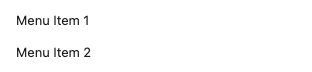
    const Default = () => {
        return (
            <MenuGroup>
                <MenuItem>Menu Item 1</MenuItem>
                <MenuItem>Menu Item 2</MenuItem>
            </MenuGroup>
        );
    };
    

    With Separator

    When other menu items exist above or below a MenuGroup, the group should have a divider line between it and the adjacent item.

    const WithSeparator = () => {
        const [ mode, setMode ] = useState( 'visual' );
        const choices = [
    		{
    			value: 'visual',
    			label: 'Visual editor',
    		},
    		{
    			value: 'text',
    			label: 'Code editor',
    		},
    	];
    
        return (
            <>
                <MenuGroup label="View">
                    <MenuItem>Top Toolbar</MenuItem>
                    <MenuItem>Spotlight Mode</MenuItem>
                    <MenuItem>Distraction Free</MenuItem>
                </MenuGroup>
                <MenuGroup hideSeparator={false} label="Editor">
                    <MenuItemsChoice
                        choices={ choices }
                        value={ mode }
                        onSelect={ ( newMode: string ) => setMode( newMode ) }
                        onHover={ () => {} } />
                </MenuGroup>
            </>
        );
    };
    
  • MenuItem

    MenuItem

    MenuItem is a component which renders a button intended to be used in combination with the DropdownMenu component.

    import { MenuItem } from '@wordpress/components';
    

    View on Storybook

    View source on GitHub

    Examples

    Default

    const Default = ( props ) => {
    	return (
    		<MenuGroup>
    			<MenuItem { ...props }>Menu Item 1</MenuItem>
    		</MenuGroup>
    	);
    };
    

    Is Selected

    When the role prop is either "menuitemcheckbox" or "menuitemradio", the isSelected prop should be used so screen readers can tell which item is currently selected.

    const IsSelected = ( props ) => {
    	return (
    		<MenuGroup>
    			<MenuItem { ...props }>Menu Item 1</MenuItem>
    		</MenuGroup>
    	);
    };
    

    With Icon

    const WithIcon = ( props ) => {
    	return (
    		<MenuGroup>
    			<MenuItem { ...props }>Menu Item 1</MenuItem>
    		</MenuGroup>
    	);
    };
    

    With Info

    const WithInfo = ( props ) => {
    	return (
    		<MenuGroup>
    			<MenuItem { ...props }>Menu Item 1</MenuItem>
    		</MenuGroup>
    	);
    };
    

    With Suffix

    const WithSuffix = ( props ) => {
    	return (
    		<MenuGroup>
    			<MenuItem { ...props }>Menu Item 1</MenuItem>
    		</MenuGroup>
    	);
    };